
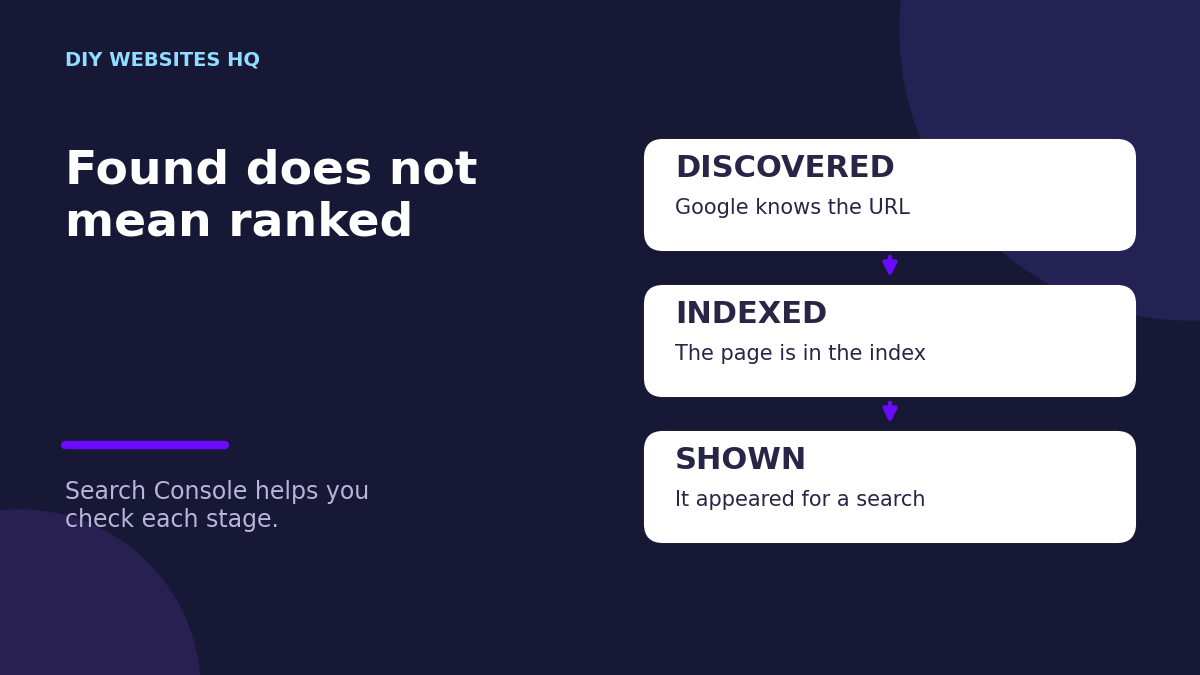
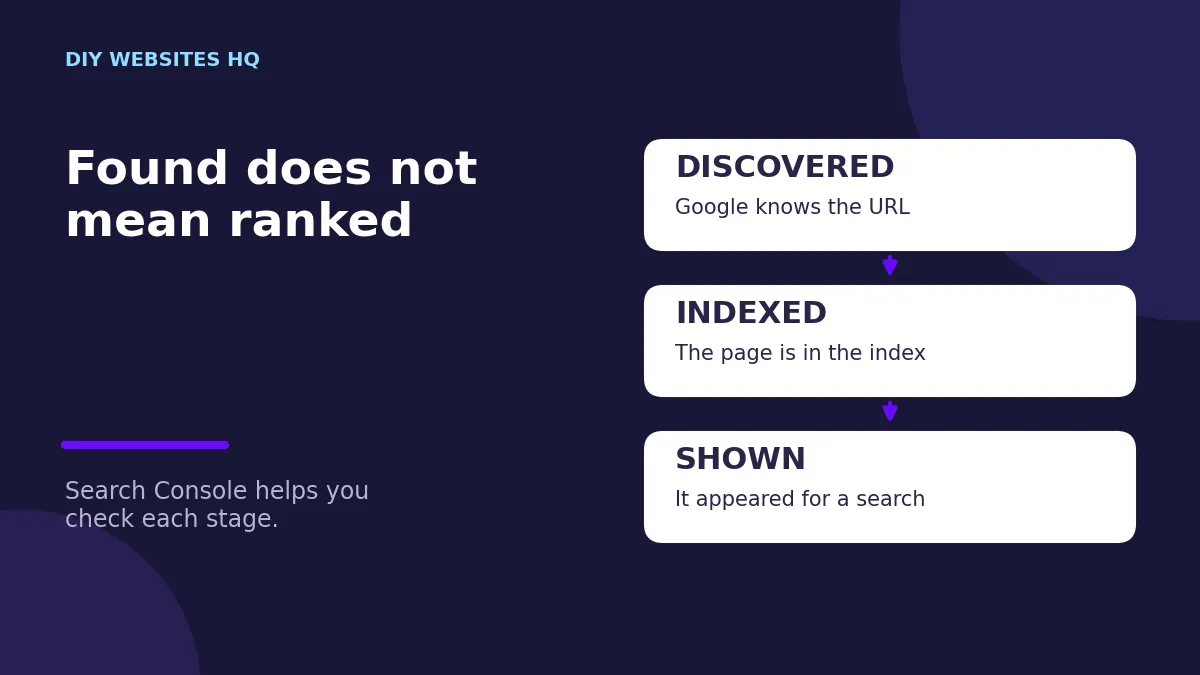
Search Console helps you understand how Google sees your own website. Set it up to answer practical questions: can Google discover this page, which address is treated as canonical, and which searches are bringing impressions or clicks?
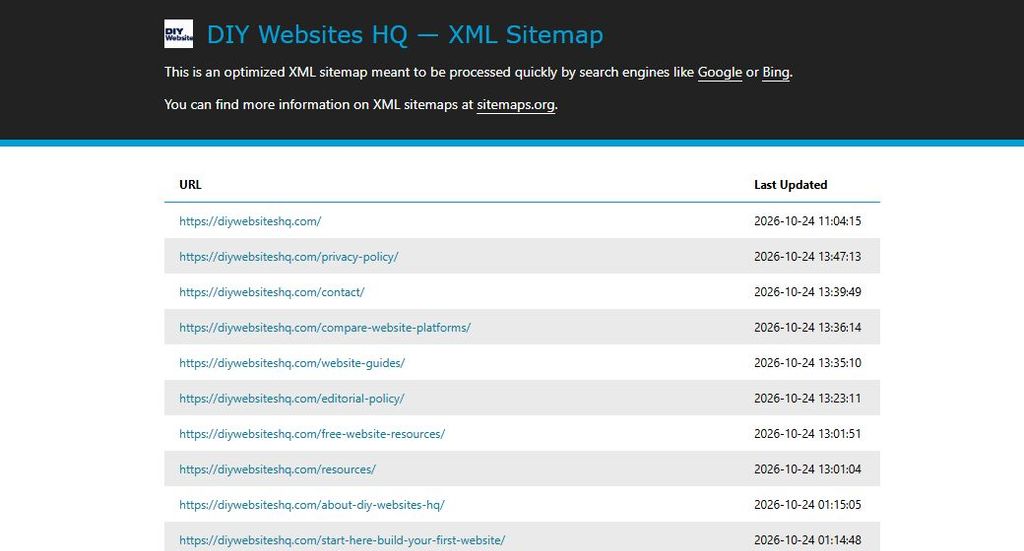
A sitemap example from this site
The October 24 publishing review found 39 intended URLs in this site’s XML sitemap. The screenshot below shows the actual sitemap rather than a fabricated Search Console report. That is evidence of the URLs being listed for discovery; it is not a count of indexed pages or search visits.
For a practical first check, pick one important URL, locate it in the sitemap, then inspect the same complete address in your Search Console property. Keep the sitemap count, indexing status and performance reports as separate observations. They answer different questions.
Start with a working public website
Open the site’s preferred HTTPS address and check that its important pages load. Record whether the address uses www. A URL-prefix property covers the specified prefix; a Domain property covers the domain’s broader set of protocols and subdomains and uses DNS verification. Choose the scope you can verify and understand.
Keep the Google account under your control. If another person helps with setup, use the service’s access controls instead of sharing your password. Account access, domain ownership and hosting access are different responsibilities.
1. Add and verify the property
Open Google Search Console and add the website property. Follow a verification method offered for that property type. For DNS verification, copy the exact record into the correct DNS provider; do not replace unrelated records. For an HTML-tag method, place the tag in the site’s head through the appropriate setting, then verify.
A common mistake is adding verification to the wrong environment. Check that you are changing the public site rather than a staging copy, and that the property matches the address visitors actually use. Retain the verification method so ownership can continue to be confirmed.
Domain or URL-prefix: choose the property before verifying
- Domain property: example.com
- Enter the domain without https:// or a page path. This property covers its protocols and subdomains. Ownership is verified through DNS.
- URL-prefix property: https://example.com/
- Enter the exact prefix you want to report on. Protocol and subdomain matter: https://www.example.com/ is a different prefix. Google offers several verification methods, subject to their requirements.
When verification fails, check the matching layer
- DNS method: confirm you edited the provider currently serving the domain’s DNS and copied the exact record Google supplied. Keep other verification records intact.
- HTML tag: confirm the exact tag appears in the public homepage’s head. Pasting it into an ordinary article paragraph does not put it there.
- HTML file: open Google’s required file URL while signed out. A login screen, missing file or different address is a concrete problem to resolve.
Illustrative example: your public site redirects to https://www.example.com/, but the selected URL-prefix property is https://example.com/. Check the property selection before interpreting a report for the wrong prefix as evidence that nobody finds your website.
Keep the successful verification method in place after setup. Then inspect one real page; ownership verification and a successful live test still do not guarantee indexing.
Google documentation checked November 22, 2026: property types and ownership verification.
2. Find the sitemap your site actually produces
Inspect your SEO plugin or platform’s sitemap setting. WordPress and SEO plugins can generate different sitemap URLs, so do not assume the same address works for every site. Open the sitemap and confirm that it contains your own published URLs rather than demo content or another domain.
Submit that address in Search Console’s Sitemaps report. A successful submission means Google can process the sitemap; it does not mean every listed page is indexed or ranking. Keep the distinction clear when reporting progress.
3. Inspect one important URL
Paste the exact public URL into URL Inspection. Read the stored indexing information, then use the live test when you need to check the current page. The stored report and live result may reflect different moments, particularly just after a rebuild.
Check publication, crawl access, indexing directives and canonical information. If an old stored crawl reports a problem that the live test no longer shows, record both dates. Do not repeatedly change a correctly configured page merely because Google has not recrawled it yet.
4. Understand the first reports
| Signal | What it tells you | What it does not prove |
|---|---|---|
| Verified property | You have demonstrated access under a supported method. | Every page is indexed. |
| Sitemap processed | Google could process the submitted sitemap. | All submitted pages rank. |
| Live test available | The current URL can be tested and evaluated for access. | A particular search position is guaranteed. |
| Performance data processing | The report is not ready to interpret yet. | The site has zero impressions or clicks. |
| Impressions and clicks | Recorded visibility and visits from Google Search in the selected report. | All website traffic or income. |
5. Make a small weekly review
Once data is available, choose a consistent date range and inspect pages and queries. Look for whether the searches match the article’s intended question. If a page appears for a related problem that you can answer well, consider adding a useful explanation rather than mechanically repeating the query.
A page with impressions and few clicks is not automatically a title problem. Position, intent, search features and the available sample all matter. Review the page and the actual query before deciding on a change. Keep a dated note so later comparisons have context.
What to do when a page is missing
Confirm that the URL is public, linked internally and included in the appropriate sitemap. Check for an accidental noindex directive, a redirect or a canonical pointing elsewhere. If the page is technically available, assess whether it adds useful information before treating repeated indexing requests as the solution.
Use the indexing troubleshooting guide for a more detailed diagnosis. For the content itself, use the beginner SEO review.
Keep measurement separate from promises
Search Console reports evidence about your site. It cannot guarantee sales or explain every ranking movement. A small new site should establish sound setup, useful content and a repeatable review process before expecting a stable performance pattern.
Download the launch checklist and content planner to record the setup and next review. Use the growth guide to turn observations into a manageable action plan.
Primary references: property setup and Google’s Search Console introduction. Interfaces and available reports can change.
Keep building with a focused guide
Keep search visibility separate from the on-site link interactions measured in analytics.
Continue with AI Search & SEO
When evaluating AI search, keep the report’s scope and dates visible. Separate impressions, citations and recorded visits before judging a change.