
Connecting a domain is easier when you separate three jobs: who registers the name, who controls DNS, and where the website runs. Before changing anything, record those providers and identify where your email is hosted.
If you’re still learning WordPress, you can practice on a free SiteRubix address before connecting a domain. When you’re ready to use your own address, confirm the hosting plan supports it and keep your domain registration and email requirements handy.
- Understand A, CNAME, MX and TXT records before changing values.
- If you already made a change, use the domain connection troubleshooting checklist.
- Once the site works, test contact-form delivery and replies.
Read a real website address before changing records
The address of this guide is https://diywebsiteshq.com/connect-domain-to-wordpress/. The domain is diywebsiteshq.com; the rest identifies the page within the website. That address does not identify the email provider or tell you which DNS records are safe to remove.
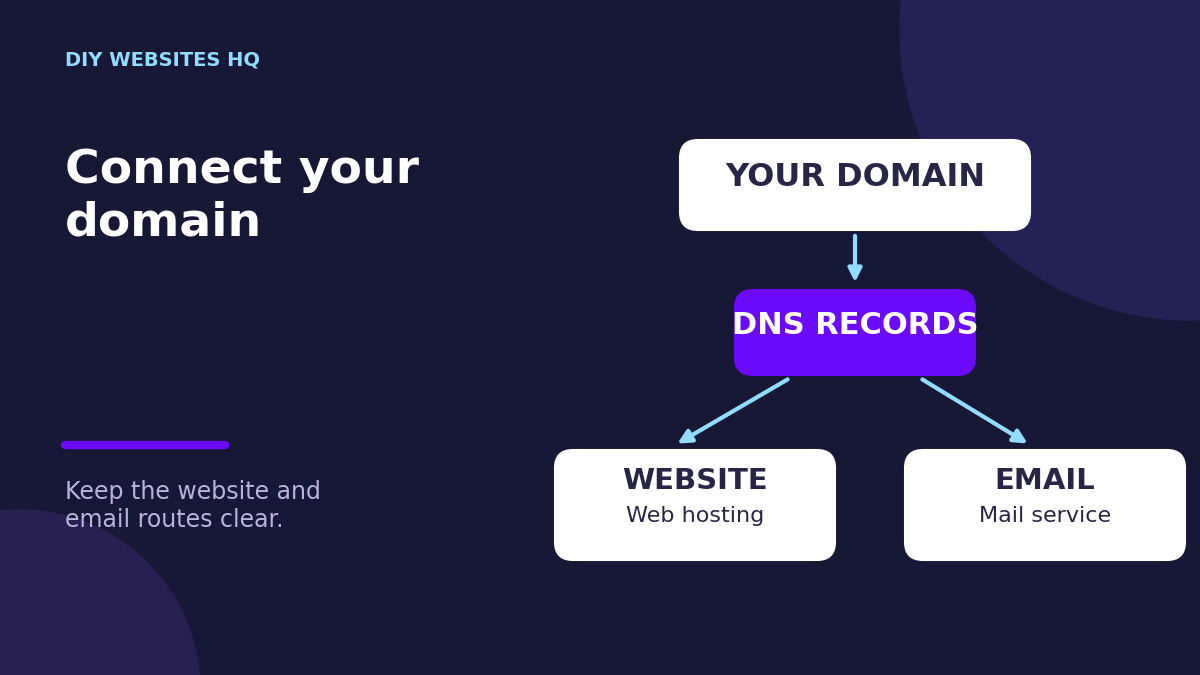
Use the diagram above to keep the two routes separate. Website traffic needs the website connection required by the host. Email may depend on other records and another service. Write those dependencies into a private change log before editing DNS. This is an explanation using the site’s actual public address; no live DNS change is being demonstrated here.

Know which change you are making
Registering a domain purchases the right to use a name for a period. Transferring it changes the registrar. Connecting it changes where traffic goes through DNS. Moving a website transfers its content and configuration. These can be separate tasks; a domain connection does not copy a WordPress database.
For a brand-new site, you may only need registration and a connection. For an existing site, plan the migration first. Do not cancel working hosting because you have bought a domain at another company.
1. Make an account and records checklist
- Registrar and renewal date.
- Current nameservers and the provider managing DNS.
- Current and destination website host.
- Email provider and the records it requires.
- Person or account able to reverse the change.
Save a copy of the current DNS records before editing. Do not publish passwords, verification tokens or private account details in a tutorial or support comment. If a technician is helping, give the appropriate account access rather than sending credentials in plain text.
2. Prepare the destination website
Add the domain in the destination host’s interface using its current instructions. Check that the site files and database are ready if this is a move. Inspect a preview or temporary address where the host provides one, paying particular attention to forms, media and URLs.
Ask the host which connection method it supports. It may request a nameserver change or specific DNS records. Use the exact values it gives for your account and project. There is no universal IP address to copy from someone else’s guide.
3. Protect email before changing nameservers
A nameserver change can move responsibility for the entire DNS zone. If the new zone lacks the correct email records, the website may work while mail stops arriving. Record the required MX and related email-authentication records and confirm how they will be retained or recreated.
If you do not understand which records belong to email, stop the DNS edit and ask the relevant providers to identify them. That is a narrower, more useful question than asking them to “fix the domain.” Keep the old working configuration available until you have verified the replacement.
4. Make the planned connection
Use the registrar or DNS provider identified in your checklist. Change only the records required for the chosen connection method. Check spelling and the host’s instructions for the root domain and www address. DNS changes can take time to become visible through different caches; do not make repeated contradictory edits while waiting.
Record the time and the values changed. If the result is wrong, that note makes troubleshooting much easier. A domain showing the old page briefly is different from a server returning an error or a certificate warning.
5. Verify the result
- Open the preferred HTTPS address on more than one connection if practical.
- Check the homepage and a few important internal URLs.
- Confirm the expected site appears rather than a parking or demo page.
- Test a contact form and verify delivery if the site uses one.
- Test incoming and outgoing domain email through its normal service.
- Check HTTPS and the preferred canonical address.
If a browser presents a security warning, do not bypass it as a normal setup step. Diagnose the domain and certificate configuration with the host. A secure connection is part of a finished launch.
Nameservers or individual records: choose the right route
Two hosts can give you different connection instructions without either being wrong. One might ask you to move the domain’s nameservers to its service. Another might ask you to leave nameservers alone and update a website record. The important question is where the rest of the domain’s services will be managed afterward.
With a nameserver change, review the complete destination DNS zone before switching. With individual records, work at the provider currently responsible for DNS. The company that sold you the domain is not necessarily that provider. Changing a record in an inactive zone can look like progress in a dashboard while making no difference to visitors.
WordPress.com’s connection instructions distinguish these routes and offer a records-based option for an existing email service. That is a WordPress.com example, not an instruction to use its records at another host. For a separately hosted WordPress installation, follow that hosting company’s connection screen.
| Method | What changes | Question to settle first |
|---|---|---|
| Change nameservers | The provider answering DNS queries for the domain changes. | Does the new DNS zone include the records for email and other services? |
| Change website records | The current DNS provider stays in place; selected records point to the destination host. | Which exact root and www records does that host require? |
| Transfer registration | The registrar managing the domain registration changes. | Is a transfer actually needed, or will a connection handle the website move? |
Connecting a Namecheap domain to WordPress: which screen do you need?
First identify the destination. A site hosted on WordPress.com uses WordPress.com’s domain-connection instructions. A WordPress installation at another host uses that host’s instructions. The WordPress software name alone does not tell you which DNS values to enter.
- Open the domain’s settings. In Namecheap, use Domain List → Manage, then read the Nameservers selection. Record the current setting before editing.
- If the host supplies nameservers: the Namecheap option is CustomDNS. Enter the exact nameserver names from that host and save with the green checkmark. Prepare the destination DNS zone first; moving nameservers does not automatically copy your existing records.
- If the host supplies website records: keep the existing nameservers and edit the records at the DNS provider they identify. Use only the root and www values supplied for this site.
A useful pre-change note
Illustrative example: “My domain is registered at Namecheap; my DNS is managed by a separate provider; my website is moving to a new WordPress host; my existing email must stay where it is.” That note points to the right dashboard and makes the email requirement explicit before any switch.
Do not paste an example IP address from a tutorial into your records. Keep the previous website values and a copy of the complete DNS zone so support can review or reverse the specific change.
Provider instructions checked November 22, 2026: Namecheap DNS settings and WordPress.com domain connection.
Keep a short change log
A private note needs only a few useful fields: the record name, type, old value, new value and time changed. Save the provider’s instructions beside it. If you need help later, you can explain exactly what happened without trying to remember which of three similar dashboards you used.
For example, “I changed the website record at 2 p.m.; the homepage now loads, but domain email has stopped arriving” gives support a concrete starting point. “Nothing works” does not distinguish a website problem from a mail problem. Keep screenshots free of account secrets if you share them in a public help forum.

Check the address people will actually share
Test both the bare domain and the www version, then confirm they lead to the preferred HTTPS address. Open an existing article directly rather than reaching everything through the homepage. If you moved an established site, try a few URLs from an old email or social post. A working front page can hide broken paths elsewhere.
Use a normal browser window and a second connection, such as your phone’s mobile data, when available. Different cached results immediately after a change need investigation, but they are not a reason to keep switching values. WordPress.com notes that DNS updates can take up to 72 hours; follow your own provider’s guidance for its expected window.
Keep the old hosting available until the website, forms, mail and important URLs pass your checks. Record both renewal dates so a temporary overlap does not become an overlooked annual bill. If you are still choosing a host, compare the services in our Wealthy Affiliate and Authority Hacker guide before starting another move.
When something does not work
| Symptom | Useful first check |
|---|---|
| Old website appears | Which DNS provider is authoritative, and have the intended changes become visible? |
| Website works, email does not | Were the necessary email records preserved in the active DNS zone? |
| Images or internal links break | Was the WordPress content moved and were its URLs reviewed? |
| Certificate warning | Is the domain correctly added to the host and is HTTPS ready? |
| Different www and non-www results | Are both addresses configured and redirected as intended? |
Use the domain vs. hosting explanation and backup checklist before a move. The budget worksheet helps record renewal and overlap costs.
Sources checked October 31, 2026: Learn WordPress’s DNS explanation, WordPress.com’s domain connection guide and ICANN’s transfer FAQ. This is a provider-neutral planning walkthrough. DNS values, connection methods and certificate steps are specific to your registrar and host; use their current instructions for the actual edit.